
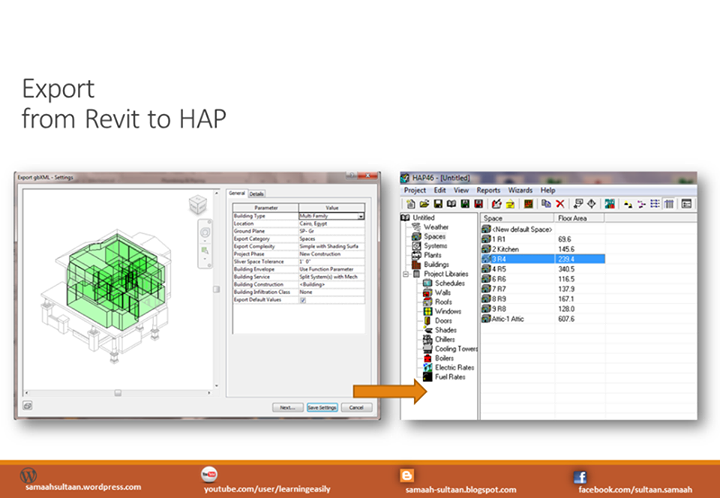
🚀 Export from Revit to HAP
Transfer Your Revit Data to Carrier HAP for Load Calculations
🟢 Revit MEP has the ability to calculate cooling and heating loads, but what if your company is using HAP (Hourly Analysis Program)? Actually, that’s not an issue here because Revit provides the ability to export data to HAP. I will show you easy steps to do that.

📘 Step-by-Step Guide
🟢 Step 1 — Access Export Menu: Click the Application button at the upper left ribbon corner, search for the Export list, and select gbXML.

🟢 Step 2 — Verify Building Data: The building shows with all data such as spaces, zones, project information, service type, and other features specified for calculation loads.

🟢 Step 3 — Export: To start exporting, click Next. A window appears concerning the XML exporting file; specify the name and location, then click Save.

🟢 Step 4 — Import into HAP: Open the HAP program, click Project at the toolbar, and select Import gbXML. Select the exported file from Revit and click Open.

🟢 Step 5 — Data Transfer: HAP will transfer all data at the exported file. HAP will ask you if you want to read the data report; if you pick Yes, the following window appears.

🟢 Step 6 — Verify Spaces: Make sure all spaces are exported correctly with their properties intact.

🟢 Step 7 — Verify Zones: Check that all thermal zones are correctly imported for accurate load calculations.

🟢 Step 8 — Building Summary: Review the building summary report to confirm all data has been transferred successfully before running your load calculations.

📦 What You’ll Get When You Subscribe
✅ Lifetime access to lectures on Udemy for distance learning
✅ Working files for practice
✅ Continuous follow-up with the instructor
✅ Certificate of completion to boost your CV
✅ Autodesk account activation for 3 years
