
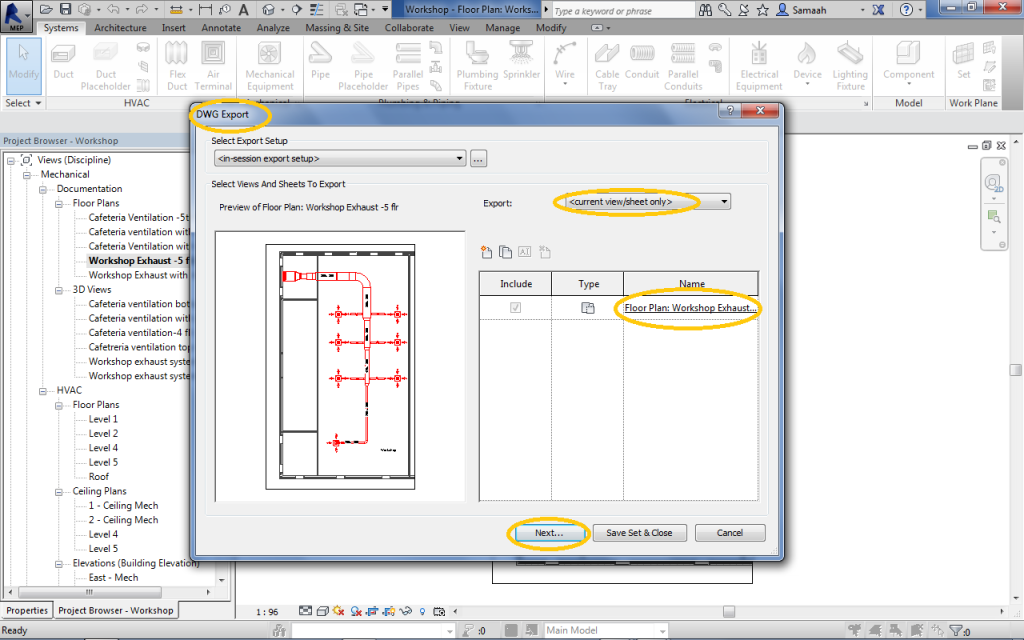
In Revit, you can easily export any project view to a standard AutoCAD (DWG) format. The process begins by selecting the “Export” function and choosing “CAD Formats,” then specifying which specific view you wish to export. A configuration window then appears, allowing you to name the output file and select the appropriate AutoCAD version for compatibility. Once the export is complete, the resulting DWG file can be directly opened and edited in AutoCAD for further drafting work or sharing with project collaborators.
In Revit, you can export a view to a plain AutoCAD

Select Export/ CAD formats as shown in picture

Select the view which will be exported

this window concern naming the file will be exported and choose your AutoCAD version


Revit exported the view by these files, now we will open the cad file

Now we open cad file at AutoCAD after exporting
