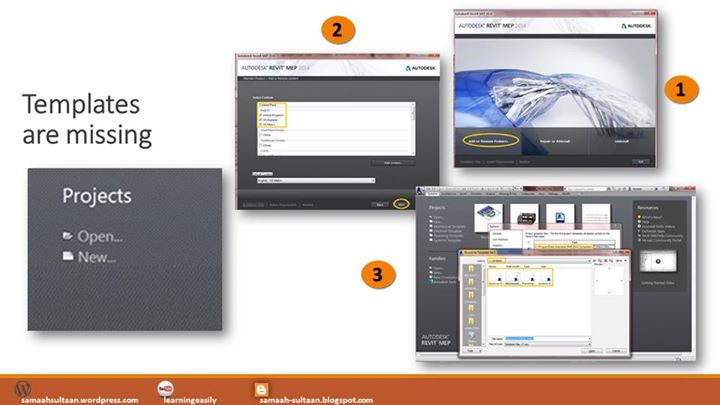
Revit MEP provides a ready templates for working but sometimes after installed the program you shocked for missing Templates which are not shown at the user interface.
Actually this issue can be solved as per the following steps.
First step will be Adding the missing templates by select it as shown.
Choose Add or Remove Features
Select the Libraries you want then click Next button.
After Installing the Libraries, go to the shown path and open the file called “Revit.ini” with NotePad to get the path of the Libraries



Pingback: Revit MEP 2016 | samaahsultaan
Pingback: easy2learn